Several Outlook users on different tech forums have reported encountering the error – “The attempted operation failed. An object could not be found – (code -08004010f).” Here are some of the users’ queries:
Query 1
When trying to open newly created Outlook Templates some users receive error message, “The attempted operation failed. An object could not be found”. Most of my users can open the simple templates we created with no issue, but some get the Object could not be found error and the template goes to the draft folder. If you immediately try to open it from the draft folder, Outlook closes. If you wait a couple minutes before trying to open from the draft folder, the template will open, I have tried online repairs with no help, fully uninstalled and reinstalled Office 365 and it fixed one user but not others. The effected users can open the templates with Outlook when signed onto other machines and I can log onto the problem user PC’s and the templates open OK for me.
Query 2
I have issue with creating rules for shared mailbox Outlook365 only
After selecting the folder, error box appeared “The attempted operation failed. An object could not be found.” I’ve tried with other mailbox name, LMS member, LMS etc., its always same result (any folders on shared mailbox showing same error).
As you can see, this error can appear when managing rules, sending/receiving emails, or accessing shared folders. In this article, we will understand the reasons behind the error – 08004010f – The attempted operation failed. An object could not be found and see how to fix it.
What Causes the Outlook Error – The Operation Failed. An Object could not be Found?
This error may occur due to any one or more of the following reasons:
Methods to Resolve the Outlook Error – The Operation Failed. An Object could not be Found
You can follow the methods mentioned below to fix this Outlook error.
1. Check and Disable Compatibility Mode
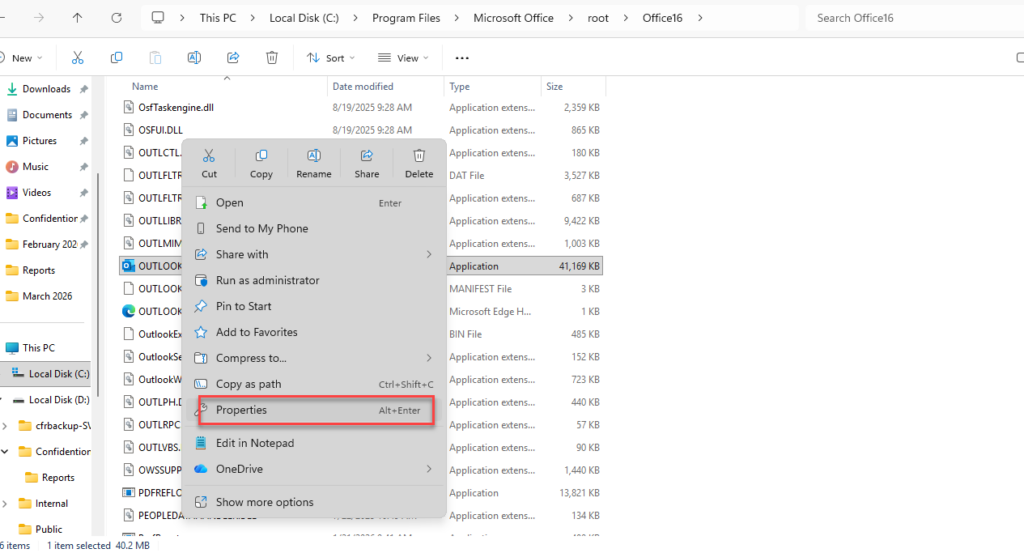
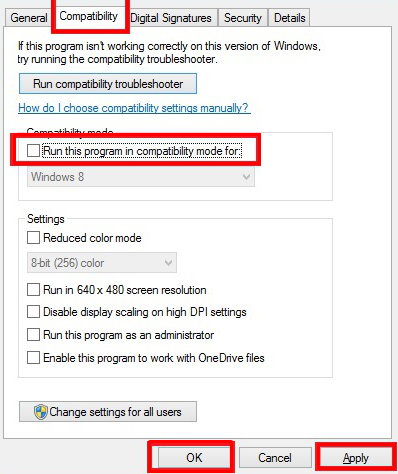
If your Outlook is in compatibility mode, then some latest features may not work properly, causing performance issues and errors. You can disable the compatibility mode and see if helps resolve the issue. Here’s how:
C:Program FilesMicrosoft OfficerootOfficeXX
2. Update Microsoft Outlook
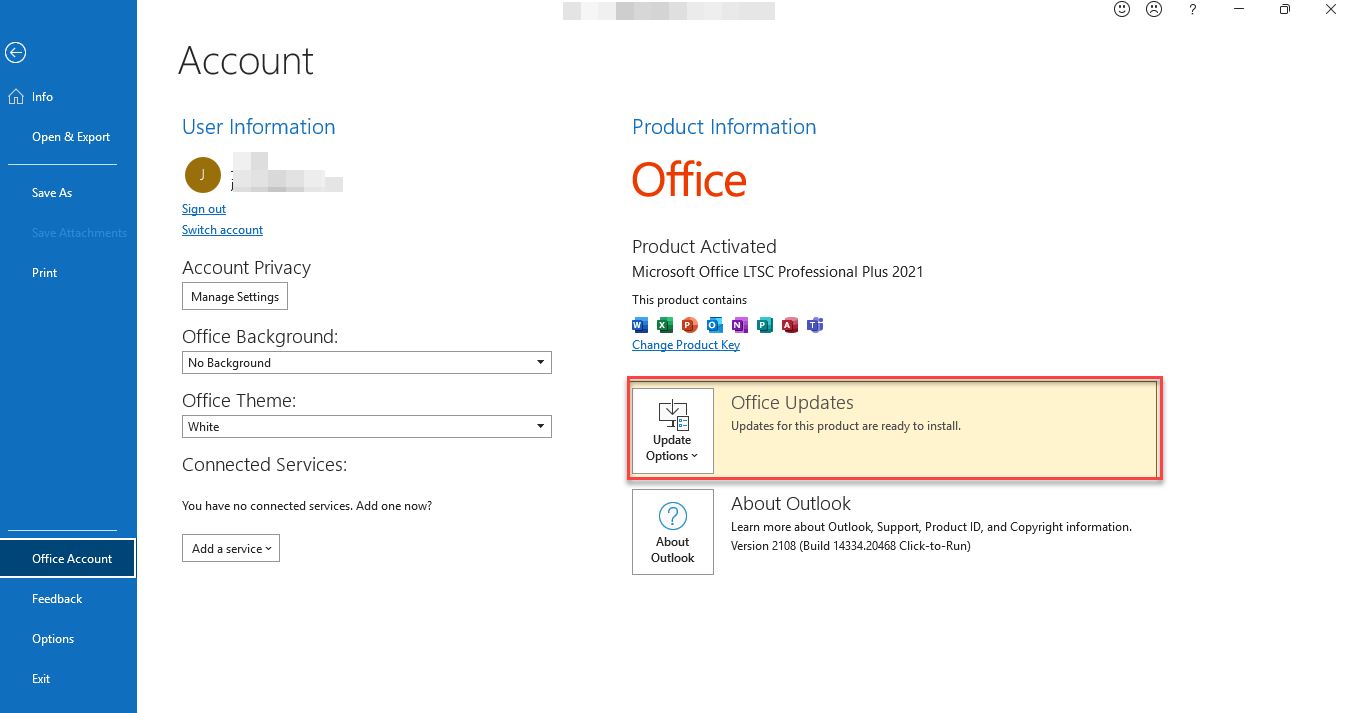
If you are using outdated version of Outlook, it may have bugs and missing patches which can cause various errors. To verify if the said error is the result of outdated version, you can check and install the latest Outlook updates. Steps are given below:
Now, restart Outlook and check if the error is fixed or not.
3. Create a New Outlook Profile
Damaged or corrupt Outlook profile might also be the reason for “The operation failed. An object cannot be found” error. You can fix the issue by creating a new profile. Follow these step-by-step instructions:
- Open the Control Panel.
- Go to Mail (Microsoft Outlook) and click on it.
- In the Mail Setup window, click Show Profiles.
- Click Add to create a new profile.
- Give it a name.
- Now, follow the prompts to set up your email account in the new profile.
- Select new profile and click Always use this profile.
- Click Apply and OK.
- Then reopen Outlook.
Check if the error appears or not.
4. Disable the Antivirus Program
Antivirus or security software may interfere with Outlook functionality and block certain operations, causing errors like this. You can temporarily disable your antivirus software to see if it is behind the issue. Here’s how:
- Right-click the icon.
- Look for an option like Disable, Turn Off Protection, or Pause.
- Select the option to disable it.
- Now, open Outlook and check if the error is resolved.
If yes, then add Outlook as an exception in your antivirus settings or install an antivirus program compatible with Outlook.
5. Disable Faulty Add-ins
A problematic or outdated third-party add-in in Outlook can also interfere with the normal operations. You can check and disable the faulty add-ins to resolve the issue. Let’s see how:
If the error doesn’t appear in safe mode, then follow these steps to disable the add-ins:
- Click File > Options.
- Select Add-ins.
- At the bottom, select COM Add-ins from the Manage dropdown.
- Click Go.
- Uncheck all the add-ins in the list to disable them.
- Click OK and restart Outlook normally.
Now, re-enable the add-ins (one at a time) to identify which one is causing the error. Once you find the problematic add-in, remove it permanently.
6. Repair PST File
If none of the above methods resolves the issue, then the problem is in your PST – Personal Storage Table – file. In this case, you can scan and repair the PST file by using the ScanPST or Inbox Repair tool. This tool is located in the Outlook installation directory on your system. Let’s see how to use this tool:
ScanPST usually repairs the PST files but it has certain limitations due to which it fails to repair the files. For instance it may fail to repair the PST if it is large or highly damaged.
For repairing large and severely damaged PST file, a dedicated PST repair tool, like Stellar Repair for Outlook is a more reliable option.
Why you should use Stellar Repair for Outlook?
Conclusion
The error – The operation failed. An object could not be found – in Outlook can occur due to outdated Outlook version, faulty add-ins, and various other reasons. In this article, we have discussed the troubleshooting methods to resolve this issue. However, if the error is caused by severely corrupted PST file, then you should go for a professional PST repair tool – Stellar Repair for Outlook. This tool can repair PST files and restore all the items to a new file with complete data integrity.